Which restriction should I choose?
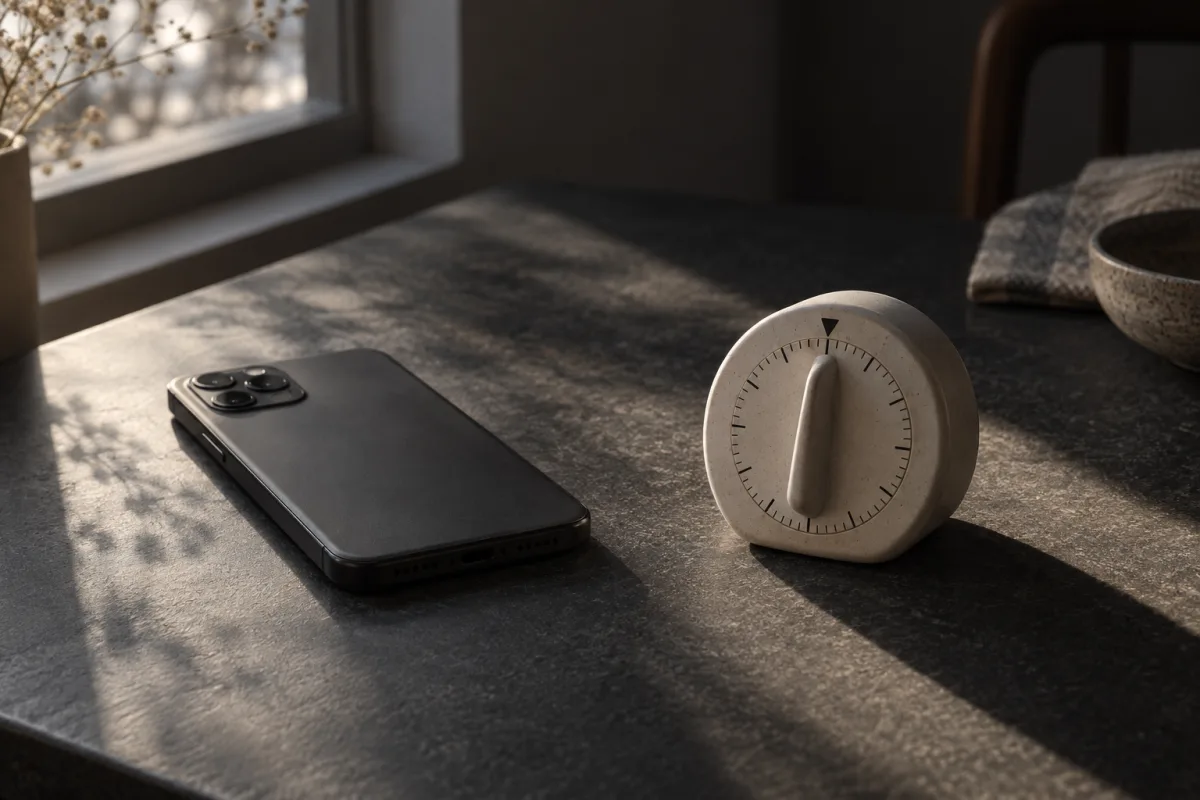
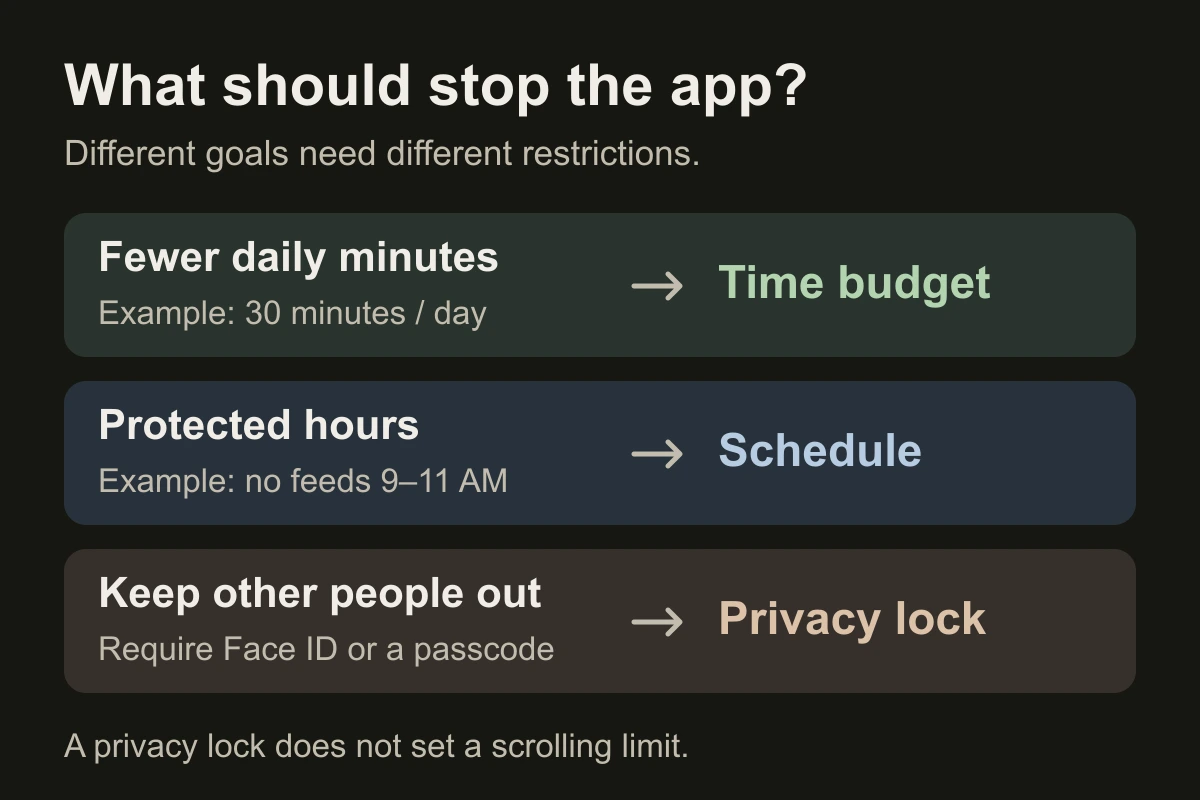
- Work, study or bedtime: use a schedule.
- Scrolling longer than planned: use a daily time budget.
- Keeping someone else out: use an app authentication lock.
A 30-minute budget could still be spent in bed. A bedtime schedule protects that window instead. These examples illustrate different goals, not recommended limits for everyone.
How do I block apps at certain times on iOS 26?
- Open Settings → Screen Time. Enable App & Website Activity if needed.
- Tap Downtime → Scheduled.
- Choose Every Day or Customize Days, then set the hours.
- Set a Screen Time passcode and enable Block at Downtime for blocking rather than a dismissible reminder.
Downtime is a broad restriction with exceptions, not a separate schedule for each app.
How do I set a daily app limit on iOS 26?
- Open Settings → Screen Time → App Limits → Add Limit.
- Expand a category to select individual apps.
- Tap Next, set the allowance and finish.
Multiple apps selected together share that allowance. Create separate limits for separate budgets. For more detail, compare App Limits and Downtime.
Seeing Screen Time Schedule or Time Allowances instead?
In Apple’s iOS 27 layout, use Settings → Screen Time → Screen Time Schedule to choose days and time windows. Use Time Allowances for category budgets; Match Screen Time Schedule connects them to the windows.
Apple requires compatible version-27-or-later software across your Apple devices for these controls. Follow the linked guide that matches your setup.
What should I check before relying on the block?
Review Screen Time → Always Allowed. Keep essential apps and contacts available, then test both a distracting app and a necessary tool during the restriction.
If you only enabled Require Face ID, you can still authenticate and scroll: that is a privacy lock. If Screen Time only shows a reminder, follow the blocking checklist. Also check the website route if you use the same service in a browser.
Close the tab. Try this.
One small action.
Choose one app and one goal: fewer daily minutes or protected hours. Set a short test, open the distracting app and an essential tool, then adjust exceptions before making the rule recurring.
Match the restriction to the moment you want back. Test access, not just the settings screen.
Sources & context
- Apple — App Limits, Downtime and Always Allowed (iOS 26) ↗
Official version-specific steps, shared app allowances and Block at Downtime, checked November 11, 2026. Our sample limits are illustrative.
- Apple — Screen Time Schedules and Time Allowances ↗
Current adult-device guide checked November 11, 2026. Describes iOS 27 controls and the requirement for compatible version-27-or-later software across Apple devices; parental controls have a separate guide.
- Apple — Lock or hide an app on iPhone ↗
Authentication protects access by other people. It is not a usage budget or a scheduled screen-time boundary. Checked November 11, 2026.
Written by EvoCat, the app’s publisher. Educational guidance, not medical advice. Our editorial approach · Suggest a correction
Put a boundary into practice
Put your chosen boundary into practice.
EvoCat offers daily time limits, timed open limits, recurring schedules, Allow Only apps and hard block on iPhone and iPad. Choose the rule that fits your routine. A free trial is available for eligible subscribers, with a paid subscription afterward; check the terms in the app.
Download EvoCat for iPhone ↗