How do I block one website on iOS 26?
- Open Settings → Screen Time → Content & Privacy Restrictions. Turn restrictions on.
- Tap App Store, Media, Web, & Games → Web Content.
- Choose Limit Adult Websites.
- Under Never Allow, tap Add Website and enter the website’s URL.
These are Apple’s iOS 26 steps. Check your version in Settings → General → About if the menus differ.
Why does a social site need the adult-content option?
On iOS 26, Limit Adult Websites exposes the Never Allow list for specific URLs. It also enables broader adult-content filtering; it is not a URL-only switch. Test a useful site afterward so the filter does not interrupt something you need.
Setting this up for a child with newer controls?
In Apple’s newer family setup, open Settings → Family → your child → Apps & Websites. Tap Add, enter the app or website and choose to block it. The Blocked tab shows the selection.
These are parental controls for the child’s device, not instructions for an adult’s own phone. Follow the guide that matches your device and account setup.
Will it work in Safari, Chrome and the installed app?
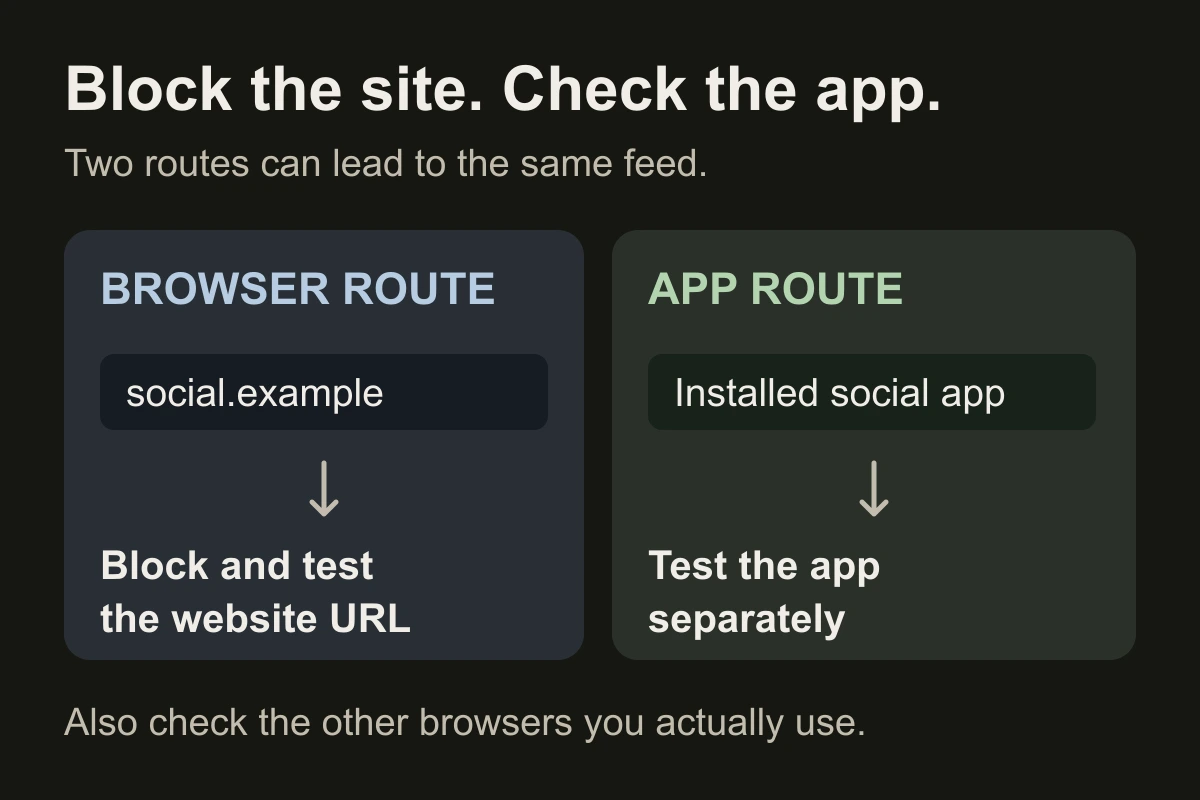
Test the blocked URL in Safari, then in Chrome or any other browser you use. Check the actual address after redirects; another domain may be a separate route.
Do not assume the installed app is blocked too. Test it separately and use app restrictions if needed. If the URL still opens, use the troubleshooting checklist.
Can I block websites only during work or study?
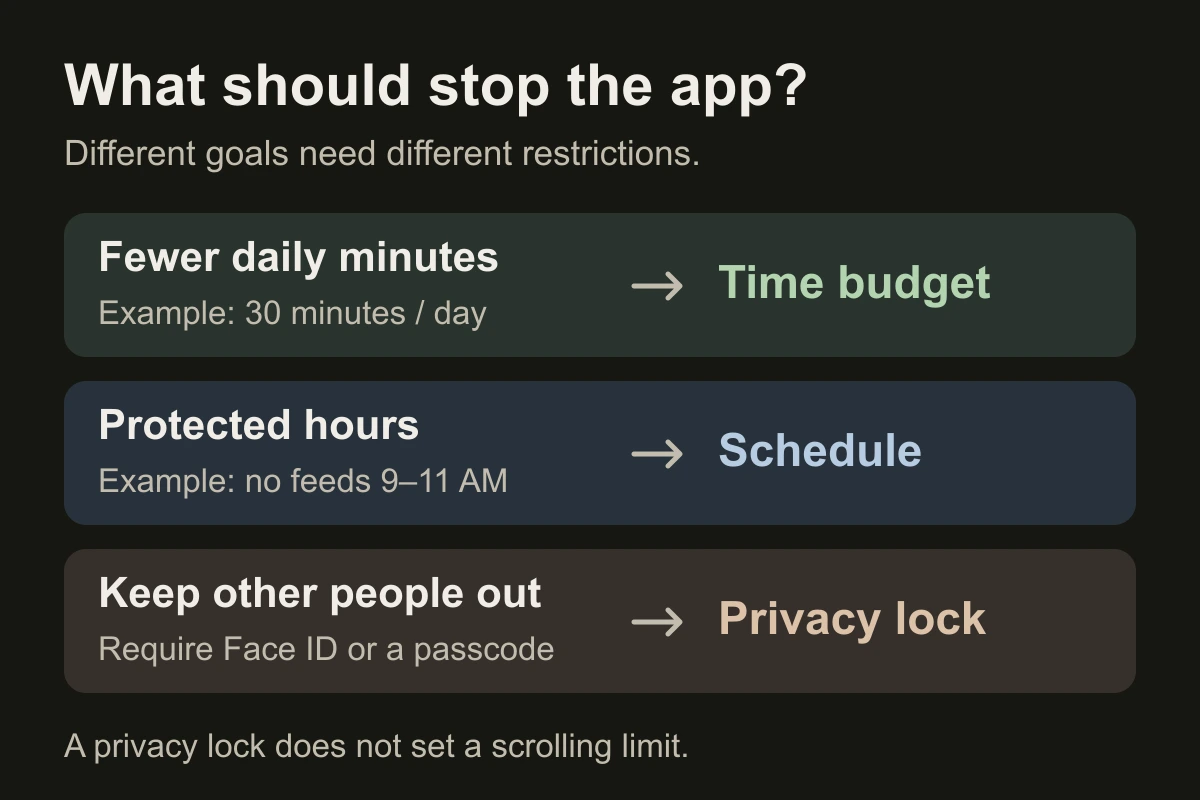
Never Allow is an ongoing restriction, not a start-and-end schedule. A daily time budget is different again. For a recurring focus window, compare time limits and schedules, and test that the selected sites—not just the browser app—are restricted.
Close the tab. Try this.
One small action.
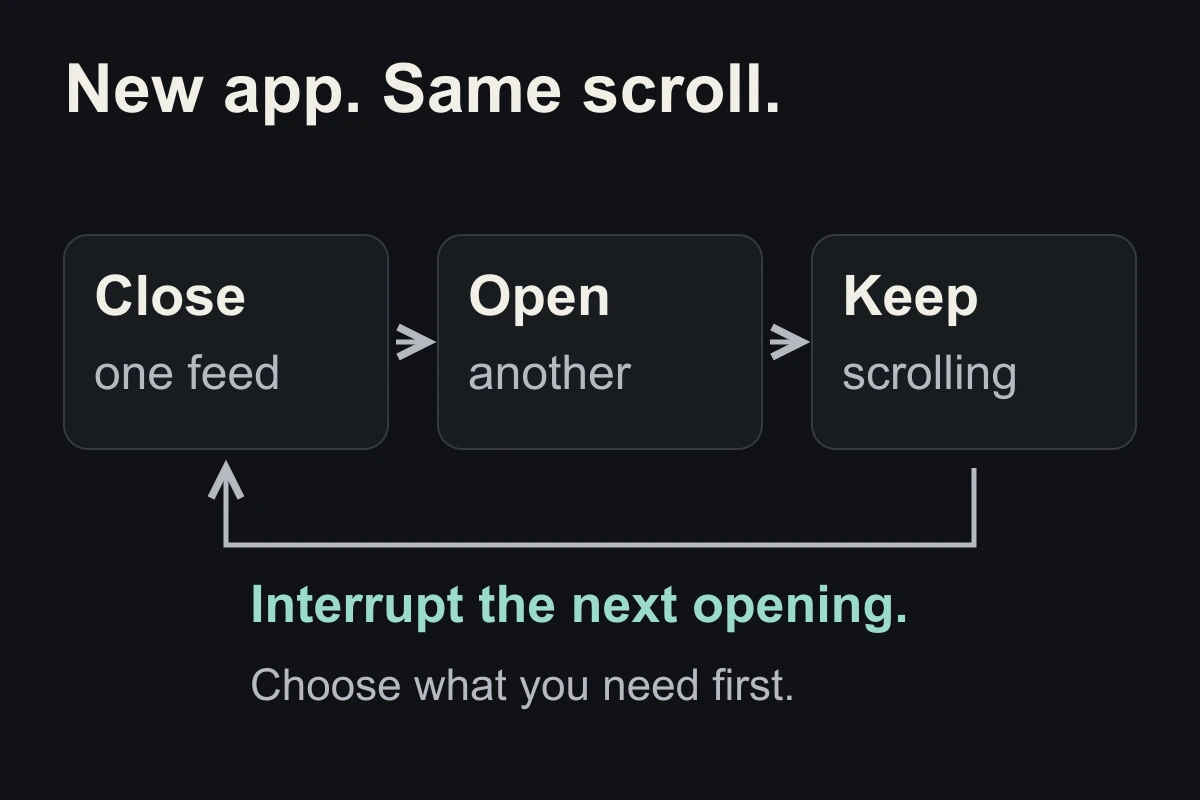
Block one distracting URL. Test it in each browser you use, open one useful site, then check the installed app separately. Adjust only the route that still needs a boundary.
A website address and an installed app are different routes. Test the one you actually use.
Sources & context
- Apple — Block websites on iPhone (iOS 26) ↗
Official Never Allow and Web Content instructions, checked November 10, 2026. Browser/app testing is our practical check, not a guarantee of coverage in every browser.
- Apple — Block or allow apps and websites on a child’s device ↗
Current family guide, checked November 10, 2026. These controls apply to the child’s setup; do not generalize them to adult self-controls.
Written by EvoCat, the app’s publisher. Educational guidance, not medical advice. Our editorial approach · Suggest a correction
Put a boundary into practice
Keep distracting sites out of your focus window.
EvoCat supports recurring blocks for selected apps and websites on iPhone and iPad. Choose the sites you need a boundary around and test them before your session. A free trial is available for eligible subscribers, with a paid subscription afterward; check the terms in the app.
Download EvoCat for iPhone ↗